
How iTunes Match works with iCloud |
||
|
||
|
With the release of iTunes 10.5.1 the much delayed iTunes match feature is now available. iTunes Match allows you to store songs even songs you've imported from CDs in iCloud and you can play them on any iPhone, iPad, iPod touch, Mac, or PC - whenever you want and wherever you are, without syncing. Read more... How iTunes Match worksiTunes determines which songs in your collection are available in the iTunes Store. The match is a three step process involving analyzing your library, matching songs, and uploading non-matched songs. It does this for your whole library. One drawback here is that you cannot choose to exclude songs. If you don't want songs to be included you will have to take them out of your library. iTunes Match: Matched SongsAny music with a match is automatically added to iCloud for you to listen to anytime, on any device. Chances are that all of your songs are already there on the iCloud since there are more than 20 million songs in the iTunes Store. And for the few songs that aren't, iTunes has to upload only what it can't match which is much faster than starting from scratch. Once your music is in iCloud, you can stream and store it to any of your devices. Matched songs from the iClloud are downloaded at 256-Kbps AAC DRM-free quality. The cool thing here is that this applies even if your original copy was of lower quality. Even better is that you can get the higher quality song to be replaced in your library. What you need to do is to remove it from your local library. After delete since the song entry stays in iTunes a little cloud now shows up in a newly added column that shows you that you have a song that is in the cloud but not in your library. You can click on the cloud and it will download it to your local library, where again it is now permanently yours at the higher bit rate. iTunes Match: Unmatched SongsThe songs that are not match by iTunes Match are copied in their current format and bit rate up to 320K. Songs encoded as MP3 or AAC will be uploaded as is. These songs will be made available for download in the same format it was uploaded in. Songs encoded in ALAC, WAV, or AIFF will be transcoded to a separate temporary AAC 256 kbps file locally, prior to uploading to iCloud. The original files will remain untouched. Song files over 200 MB will not be uploaded to iCloud. Songs containing DRM (Digital Rights Management) will not be matched or uploaded to iCloud unless your computer is authorized for playback of that content. Songs purchased outside of the United States iTunes Store containing DRM will not be matched or uploaded to iCloud. Songs encoded as AAC or MP3 with a bitrate lower than 96 kbps will not be matched or uploaded to iCloud. Other iTunes Match Features
How to subscribe to iTunes MatchiTunes Match is a $24.99 per year service providing full access to all your music up to 25,000 tracks from any of the devices. Your subscription will automatically renew at the end of your subscription. iTunes Store purchases made with the same Apple ID being used for iTunes Match do not count towards the 25,000 song limit.
iTunes Match: How to add a computer or iOS deviceAdding computer to iTunes Match
Adding iOS device to iTunes Match
iTunes Match Setup Tips:
iTunes Match: How to delete songs from iCloud
iTunes Match: iCloud delete tips:
Labels: Apple-iPod-Touch-Tips-Tricks | ||


How to make FaceTime call on iPod Touch 4G |
||
|
||
|
As you all know by now, one of the coolest new additions to new iPod Touch 4G is the FaceTime feature that allows you make video calls to friends and family across the globe. The FaceTime feature allows you make video calls to other iPod Touch 4G and iPhone 4 over WiFi. Read more... This feature is made possible by 2 new cameras introduced on the iPod Touch 4G. One on the front, which focuses on you. And one on the back, which focuses on what's in front of you. Note that FaceTime lets you switch between them at any time during a video call. How to do FaceTime call on iPod Touch 4G
Troubleshooting FaceTime problemIf FaceTime call is not working then first try making a FaceTime call to Apple's FaceTime testing number at 1-888-FACETIME (1-888-322-3846). By doing this you can find out if the problem is with receiving calls or making the calls. Issue 1: Unable to activate or make FaceTime callsTry turning FaceTime off and on again using the following:
Issue 2: Can't place a FaceTime call to a particular contact | ||

iPod Touch Bluetooth Setup with Stereo Headphone or Car kit |
||
|
||
 Read more... Pairing Bluetooth headphones or car kit with iPod touch
After these steps of pairing the headphones with iPod touch, the headphone product name and a Bluetooth audio icon appear on the iPod touch status bar at the top of the screen when you are viewing audio or video playback controls. Tap to switch to a different audio output, such as the internal speaker. The Bluetooth icon appears blue or white, if the bluetooth is on and a device is connected to iPod touch. Note that the color depends on the current color of the status bar. If the Bluetooth icon is gray in color it means that Bluetooth is on but no device is connected. If you’ve paired a device with iPod touch, it may be out of range or turned off. if there is no Bluetooth icon it means that the bluetooth is turned OFF. Un-pairing or removing a Bluetooth headphones or car kit from iPod touchIf you’ve paired iPod touch with one Bluetooth device and want to use another device instead, you must unpair the first device.
iPod Touch Bluetooth Problems and issuesUnable to find nearby Bluetooth devices
Unable to pair with Bluetooth device
Cannot connect to a paired Bluetooth device
Labels: Apple-iPod-Touch-Tips-Tricks | ||


Gift Apps in the iTunes Store |
||
|
||
|
You can also choose to print out a gift certificate to mail or give in person. You can also just spread the word instead by using the Tell a Friend option also available via the down triangle, and it lets you send an email from within iTunes by entering text and your friends' email addresses. Or you can use Copy Link and then paste it into a mail message. Labels: Apple-iPod-Touch-News, Apple-iPod-Touch-Tips-Tricks, iPod-Touch-Apps | ||

How to manage On-The-Go Playlists on the iPod Touch |
||
|
||
|
Add songs to On-The-Go playlists First go to your music, and tap Playlists, then On-The-Go, which appears near the top of the list. Browse for songs using the buttons at the bottom of the screen. Tap any song or video to add it to the playlist. Tap Add All Songs at the top of any list of songs to add all the songs in the list. If you select an artist, composer, or album, you can choose Add All Songs at the top of that item's list, and if you select a genre, you can choose Add All Albums. Read more... Edit On-The-Go playlists To edit the playlist, tap Playlists, tap On-The-Go, tap Edit, then do one of the following:
Sync On-The-Go playlists to iTunes If you sync your iPod automatically, iTunes will copy the On-The-Go playlist, naming it On-The-Go 1, On-The-Go 2, and so on. The playlist on the iPod Touch itself is deleted. To put a playlist back on iPod Touch, select iPod Touch in the iTunes sidebar, click the Music tab, and set the playlist to sync. However, if the iPod is set to sync manually, then iTunes won't copy the playlists. If you want to save them, you'll have to recreate them on iTunes. On-The-Go playlists are a great way to set up a soundtrack for a day's listening without using iTunes. Labels: Apple-iPod-Touch-Tips-Tricks | ||
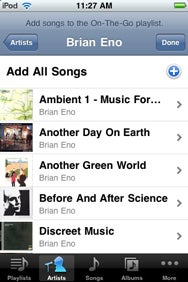 On-The-Go playlist is a feature on your iPod Touch that lets you set up playlists on the iPod itself without having to use the iTunes.
How to transfer or copy iTunes purchases from iPod or iPhone to computer |
||
|
||
|
You purchased items from the iTunes Store and for some reason you lost all your songs and other contents library that were on your computer. And now the only place you have them stored is on your iPod or iPhone. Worry not! With iTunes 7 or later you can easily transfer all the songs from your iPod or iPhone to any computer that is authorized for your iTunes Store account. Here is a step by step instructions on how to do this. The first thing before transferring your iPod or iPhone contents to the computer is to authorize your computer. This needs to be done even before connecting your iPod or iPhone to the computer.
NOTE: If you purchased from the iTunes Store using multiple accounts then you will need to authorize the computer for each one. Now foolow these steps to transfer iTunes Store purchases from your iPod or iPhone to a computer:
Note that these steps will only help you restore content that you purchased from the iTunes store. Any items imported from audio CDs or acquired from other sources will not copy from your iPod or iPhone to the iTunes library. Labels: Apple-iPod-Touch-Tips-Tricks | ||


Apple fixes iTunes Crashing after Firmware 2.2.1 upgrade |
||
|
||
|
Since the release of the iPhone 2.2.1 firmware update, many users have had problems with iTunes crashing with both iPhones and even iPods. To fix this issue Apple has sent the following email to some of the affected customers that outlines the steps for fixing this issue. Show me more... Dear Customer, This fix has now been available on the internet for some time now and users have been reporting that this fix does work. Drop a comment if you had this issue and if this fix works. | ||
How to increase iPod Touch battery life |
||
|
||
 Apple claims that the iPod touch gives up to 36 hours of music playback and up to 6 hours of video playback when fully charged. But many users since the 1st gen ipod touch have been complaining of significantly lower battery runtimes. With such high-tech, power-hungry features and Apps that you're getting on the iPhone and iPod Touch, it's no surprise that you don't get the battery life that you'd like to. However, there are a number of simple ways to lengthen the time between charges, as well as prevent the premature need for battery replacement. Show me more... Temperature MattersYour iPod works best from 32° to 95°F. You should store it in environments of -4° to 113° F. That’s 0° to 35° C and -20° to 45° C for the metrically inclined. Keeping your iPod as near room temperature as possible (72° F or 22° C) is ideal.If the temperature is higher than 95° F (or 35° C), you may permanently damage your battery’s capacity. You may damage it even more if you charge the device in these temperatures. Even storing a battery in a hot environment can damage it irreversibly. Cold environment is not good either. Cold environment may decrease the battery life. Unlike the effects of a hot environment, this is a temporary condition. Once molecules in the battery warm up, the battery will return to its previous capacity. Charging your iPod touch while in certain carrying cases may generate excess heat, which can affect battery capacity. If you notice your iPod gets hot when you charge it, take it out of its case first. Turn off Wi-FiWi-Fi consumes power even if you are not using its features to connect to a network. You can turn it off to save power. Go to Settings > General > Network > Wi-Fi.Switch Off Backlight and Equalizer (EQ)Your iPod’s backlighting and equalizer features all consume power. Setting the backlight to “always on” will significantly reduce your battery life. Adding EQs to playback uses more of your iPod processor, since they aren’t encoded in the song. Turn EQ off if you don’t use it. If, however, you’ve added EQ to tracks in iTunes, you’ll need to set EQ to “flat” in order to have the effect of “off,” because iPod keeps your iTunes settings intact.Minimize use of third-party applicationsExcessive use of applications on iPod touch, such as games that prevent the screen from dimming or shutting off, can reduce battery life.Fetch new data less frequentlyApplications on iPod touch such as Mail can be set to fetch data wirelessly at specific intervals. The more frequently email or other data is fetched, the quicker your battery may drain. To fetch new data manually, from the Home screen choose Settings > Fetch New Data and tap Manually. To increase the fetch interval, go to Settings > Fetch New Data and tap Hourly. Note that this is a global setting and applies to all applications that do not support push services.Turn off push mailIf you have a push mail account on iPod touch such as Yahoo!, MobileMe or Microsoft Exchange, turn off push mail when you don’t need it. Go to Settings > Fetch New Data and set Push to Off. Messages sent to your push email accounts will now be received on your iPod touch based on the global Fetch setting rather than as they arrive.Minimize Fast ForwardiPod plays music out of a solid-state memory cache to provide skip-free playback and maximize battery life. If you fast forward through your playlist, iPod will need to fill its cache more frequently, thus accessing the hard drive more often and using more power. This will decrease overall battery life. By creating great playlists in iTunes that cater to your personal taste, you can decrease your need to fast forward. Using the shuffle feature may also help to minimize your use of the fast forward feature.Use Compressed SongsiPod’s cache works most efficiently with songs of average file sizes (less than 9 MB). If your audio files are large or uncompressed (including AIFF or WAV format), you may want to compress them, or use a different compression method, such as AAC or MP3, when importing them into iTunes.Labels: Apple-iPod-Touch-Tips-Tricks | ||
iPod Touch Wi-Fi Settings: How to connect & manage iPod Touch Wi-Fi network |
||
|
||
 iPod touch automatically locates wireless hotspots (WiFi), including protected networks within a given nearby range. If it's a secure network--the networks are listed with a padlock icon--the touch will prompt you for a password. This will be one of the keys listed on your router's wireless configuration pages. Show me more...Once connected, verify that everything's working by using Safari to surf the Web. You can use the iPod touch WiFi to connect to the Internet using Safari web browser, YouTube, or iTunes WiFi Music Store. How does the iPod Touch connect to the WiFiWhen you use the Safari, YouTube or the iTunes WiFi Music Store, the iPod touch automatically does the following in order until it is connected:
When iPod touch is connected to a WiFi network, the WiFi icon in the status bar at the top of the screen shows connection strength. The more bars you see, the stronger the connection. How to change the iPod Touch Wi-Fi settings
Choose Settings > Wi-Fi and turn Wi-Fi ON or OFF. | ||
7 Cool Safari Tips & Tricks for iPod Touch and iPhone |
||
|
||
 Tip 1:How to scroll back to the top of a long webpageAfter flicking a page to get it to scroll, you can tap the page at any time to stop that movement. Don't forget, you can also manually drag the screen display to reset the part you're viewing. And when you’re scrolling through a long webpage in Safari - if you tap the bar at the top of your screen containing the time and battery, Safari will automatically scroll up to the top of the document/page and shows the address bar.Show me more... Tip 2:How to page down on a webpageWhen not using a zoomed-in display, double-tap towards the bottom of the screen. The page will re-center around your tap. Make sure not to tap a link!Tip 3:How to browse websites containing framesSome webpages are organized into frames, where each frame displays a different web document. You can use Safari to browse and scroll through web pages containing frames by using two fingers simultaneously. On a computer you will be able to scroll through such frames using a scroll bar. On the iPhone and iPod touch these frames do not contain any scroll bars and each frame of such frameset will be expanded to fit its content. On the iPhone and iPod touch these frames do not contain any scroll bars and each frame of such frameset will be expanded to fit its content.Example: With MobileMe Mail on the web, you have a preview pane window. When you select your email in the Inbox while using Safari, you need to use the two finger flick or drag up or down solution to scroll through the body of that email message. When you use just one finger, you are scrolling through the web page so you won't be able to see the body of the email message. Tip 4:How to Zoom in on a webpageSometimes it might be different to read the text on some webpages in the font size of the text is too small. So in the Safari browser window on any web page double tap to zoom in. You can also “pinch” (putting your thumb and index finger on the screen and pinching in and out) to zoom in on a particular paragraph and also zoom in on the Pictures. If the picture that your trying t ozoom in on is linked to a URL, this can prove a little tricky but it works great for non-linked images. Double-tap again to return to the unzoomed display.Tip 5:How to type a lot of textWhen typing a lot of text in Safari turn it to horizontal view. The keyboard will be bigger and you can get a better grip of the Touch while typing with two thumbs.Tip 6: How to check website URLsWhen in Safari, holding your fingertip down on a link instead of tapping it produces an information bubble that displays the underlying URL. The same thing happens in Mail when you hold a link, which makes this tip much more useful. Now when those “account update” e-mails appear, you can press and hold on the link to find out if you’re really going to be taken to the site the e-mail claims.Tip 7:How to open link in a new browser windowA quick way to open a link in a new window in Safari is to open a new page, tap the bookmarks icon, tap the history folder and direct yourself to the last page you were just on and open the link from there.Do you know of any other Safari navigation tricks? Please leave a comment. Labels: Apple-iPod-Touch-Tips-Tricks | ||
How to restore when wrong passcode disables your iPod Touch or iPhone |
||
|
||
 As you know iPhone and iPod touch allow you to set a passcode to be entered when powered on or when the wake button is pressed. And when you enter the wrong passcode you'll see a screen that says "Wrong Passcode, try again." If you enter the wrong passcode too many times, you'll see a message that says "iPod is disabled" and to try again late. The screen on the iPhone will read as "iPhone is disabled." As you know iPhone and iPod touch allow you to set a passcode to be entered when powered on or when the wake button is pressed. And when you enter the wrong passcode you'll see a screen that says "Wrong Passcode, try again." If you enter the wrong passcode too many times, you'll see a message that says "iPod is disabled" and to try again late. The screen on the iPhone will read as "iPhone is disabled."If you repeatedly enter the wrong passcode, iPhone or iPod touch will be disabled for longer intervals, before you can try again. After too many unsuccessful attempts, you won't be able to try again until you connect to the computer you normally sync with. Show me more... Note that starting with iPhone 2.1 software, there is a setting to cause the device to erase itself after 10 consecutive incorrect password attempts. This setting is off by default. It can be turned on by tapping Settings > General > Passcode Lock after you enter a correct passcode.  If you cannot remember the passcode, you will need to restore your device on the computer that was used to originally sync the iPhone or iPod touch so that you can reset your passcode and resync the data from the device (or restore from a backup). If you restore on a different computer that was never synced to the iPhone or iPod touch, you will be able to unlock the device for use and remove the passcode but your data will not be present. Restoring your iPhone or iPod touchRestoring your device will erase all data from your iPhone or iPod touch, including songs, videos, contacts, photos, calendar information, and any other data. All iPhone or iPod touch settings are restored to their factory condition.Whenever you restore your iPhone or iPod touch, Apple highly recommends that you perform a sync prior to restoring in order to back up any changes since your last sync. If you have movie rentals on the device that you haven't finished watching, restoring using iTunes will delete the movie rental and will not be recoverable. Use the following steps to restore your iPhone or iPod touch:
Labels: Apple-iPod-Touch-Tips-Tricks | ||
iPod Touch home button double-click feature |
||
|
||
|
One of the good feature of the iPod Touch that the iPhone lacks is the ability to double-click the Home or the tactile button to bring the iPod controls. Pressing the only tactile button on the player twice makes music controls appear over whatever screen mode you happen to be in—Safari, YouTube, or whatever. Even if the player is locked, double-clicking will bring up a set of music controls that features track information, play/pause, forward and backward within a playlist or album, a Music button to take you directly to the Now Playing screen, and a Close button to escape. This function works even if the screen has timed out and gone black, and it's a great quick way to skip that song you hate or pump up the volume on the one you love. Labels: Apple-iPod-Touch-Tips-Tricks | ||
iPod touch features multiple keyboards with multi-language support |
||
|
||
|
The iPod Touch keyboard functionality is far more robust & superior than the iPhone’s keyboard. iPod touch provides keyboards in 14 different languages, and supports the following keyboard formats: - QWERTY - QWERTZ - AZERTY - QZERTY - Japanese IME In addition, the iPod touch provides the ability to make two or more keyboards available simultaneously. If more than one keyboard is turned on you can tap a special icon to switch keyboards while you’re typing. Apple says “When you tap the symbol, the name of the newly active keyboard appears briefly.” Another interesting feature is that the iPod touch’s keyboard allows you to quickly type a period by double-tapping the spacebar. iPod touch also has keyboard dictionaries for English (both U.S. and U.K.), French, and German. If you’re typing on a keyboard set to one of those languages, iPod touch uses the corresponding dictionary to suggest a correction when it appears that you’re misspelling a word, or to predict the word you’re currently typing. The suggested correction or prediction appears just above or below the word you’re typing. Labels: Apple-iPod-Touch-Tips-Tricks | ||
| ©2012 appleipodtouch.blogspot.com. All rights reserved |


